GIF → MP4: Before & After
Every number on this page was measured, not estimated — the source clips were converted and weighed with the same default settings this site uses (H.264 CRF 23, original resolution).
Measured size savings
Three deliberately different content types, because the honest answer to “how much smaller?” is “depends what’s moving”: 37–60% on these small clips, and typically much more on larger photographic GIFs.
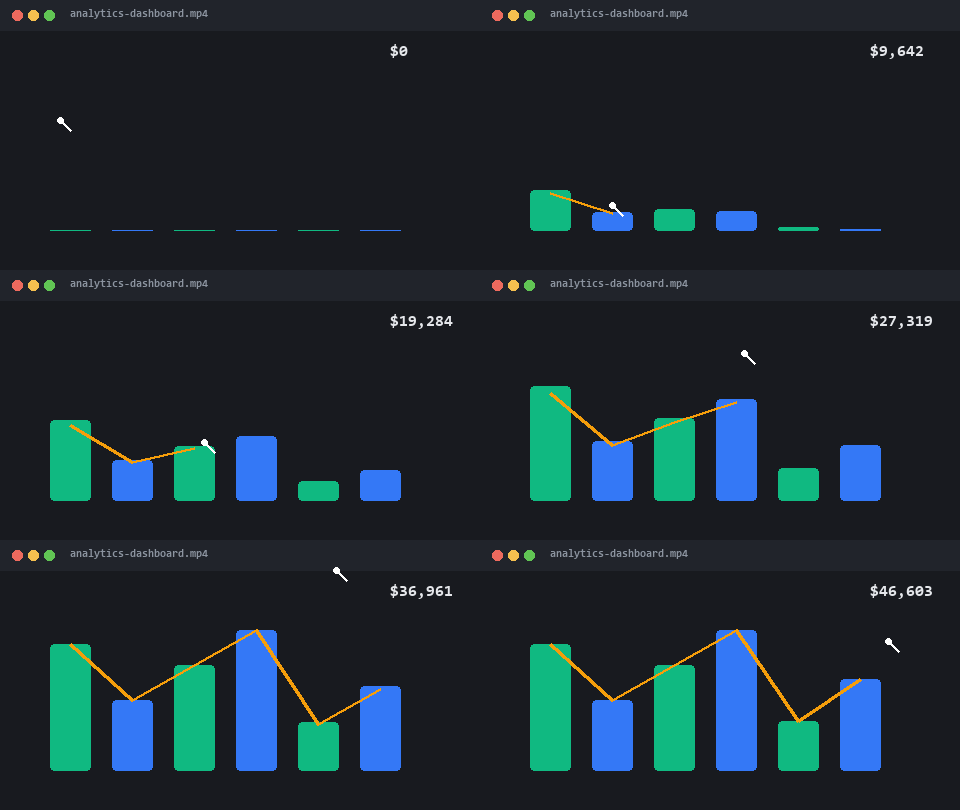 GIF · 63.7 KB
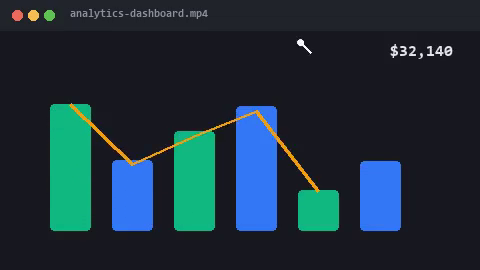 MP4 · 25.7 KB
Screen recording demo 480×270 · 3s · 10fps
−60%
Static UI regions are where H.264 shines: only the changing chart pixels are re-encoded each frame.
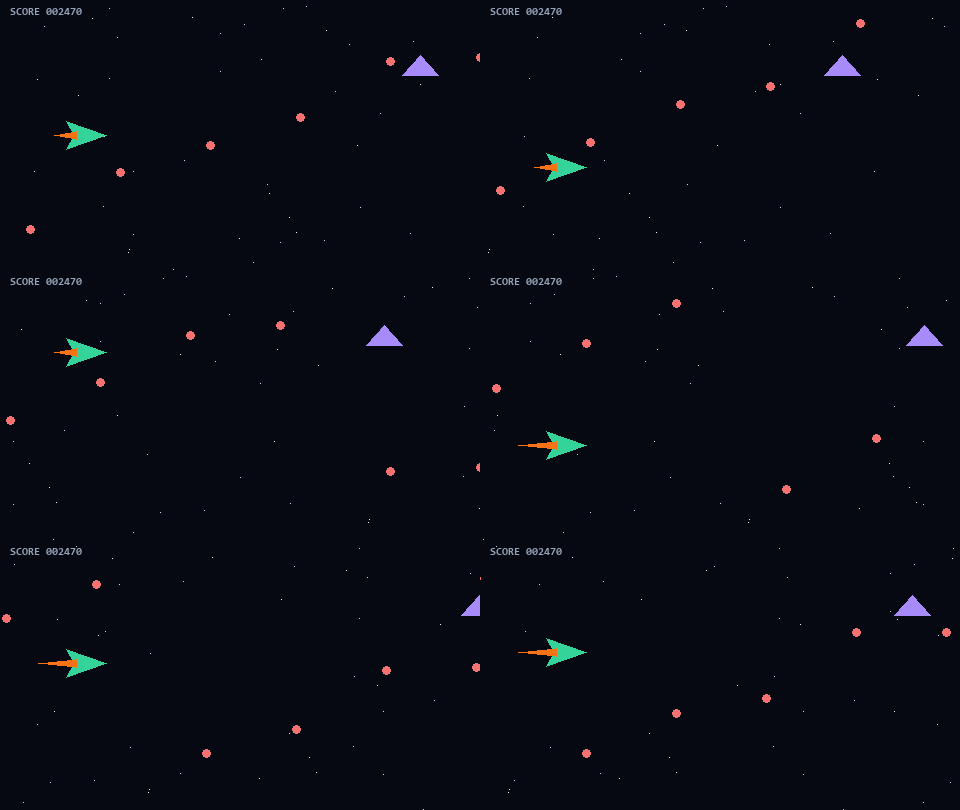 GIF · 60.0 KB
 MP4 · 37.7 KB
Pixel game clip 480×270 · 3s · 10fps
−37%
Every pixel moves every frame (starfield + scrolling) — the honest lower bound. Photographic content saves far more.
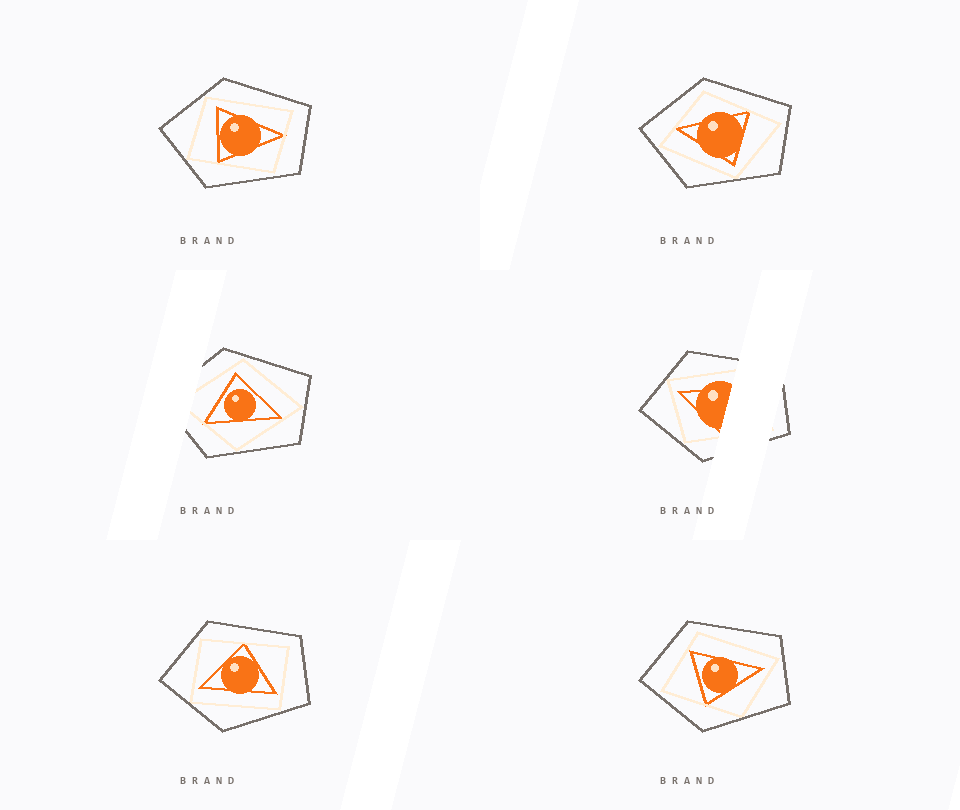 GIF · 96.7 KB
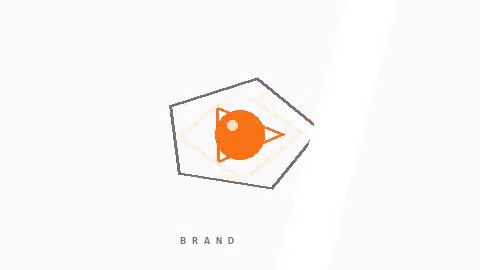 MP4 · 55.6 KB
Animated logo 480×270 · 3s · 10fps
−43%
GIF's 256-color palette actually compresses flat colors well — that's why the gap is smaller than you'd expect.
Why small clips show smaller savings: GIF overhead is fixed-ish per frame, so tiny 3-second clips start close to efficient. A real 15 MB meme GIF carries far more redundant pixel data, which is where the 80–95% savings you see quoted elsewhere come from — same converter, bigger input.
Real conversions — see the difference
Every pair below is the same clip: the left side is the original 10fps GIF, the right side is the actual AI-interpolated output from this tool.
BEFORE · 10fps GIFScreen recording demo
Dashboards and UI walkthroughs are usually captured at 10-15fps — charts stutter as they grow. Interpolation makes every animation land.
BEFORE · 10fps GIFGame clip
Fast motion shows low frame rate the most. In-between frames are synthesized from the motion itself — not frame duplication.
BEFORE · 10fps GIFAnimated logo
Rotation and easing look mechanical at 10fps. At 60fps the same animation reads as premium motion design.
What 60fps actually means
The clearest way to show it: count the frames inside the same tenth of a second.
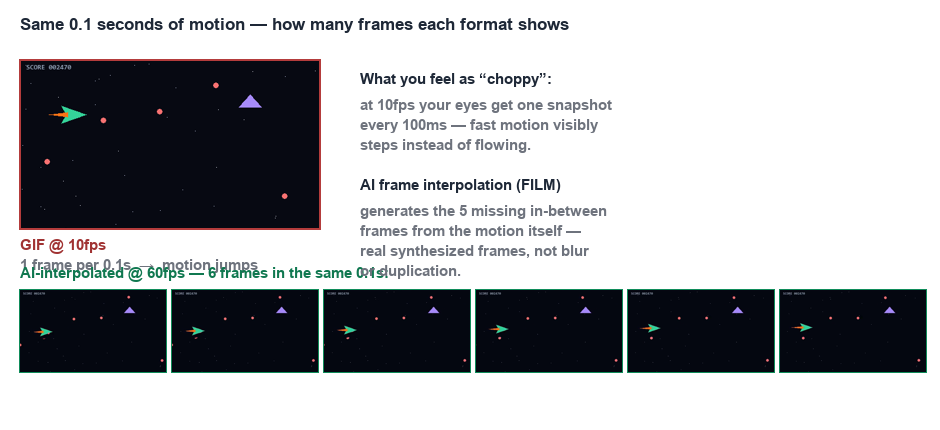
Frames above are extracted from the real outputs: the 10fps source GIF and the AI-interpolated 60fps video on the game clip above. Try it on your own clip on the 60fps page.
Real upscale comparison
A zoomed crop of the same frame — regular 2× resizing (left) vs our AI output (right). Notice the edges and pixel art detail.
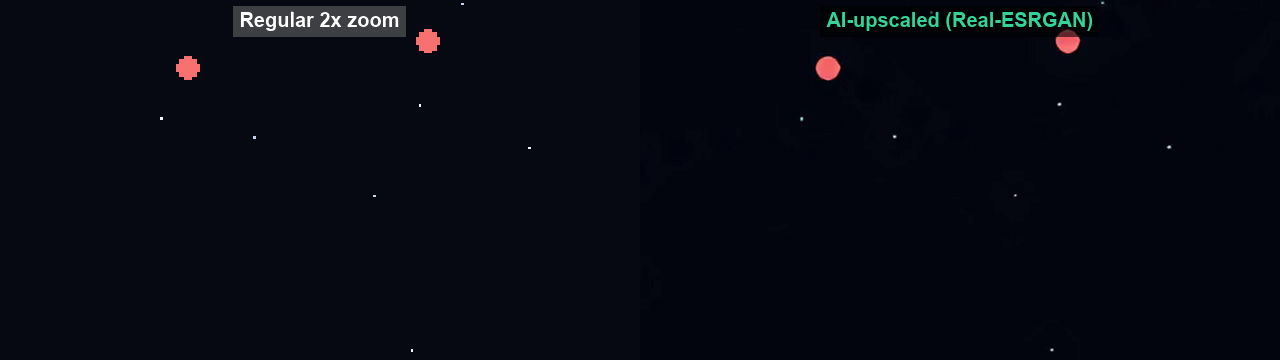 BEFORE · 480×270
Measure your own file
Drop any GIF — the converter shows your exact before/after size before you download. No upload, no signup.
Convert a GIF nowWhy MP4 comes out smaller — and when it doesn’t
GIF stores every frame as a 256-color image and repeats pixels that barely change. MP4 (H.264) encodes motion: one full reference frame, then only the differences. The more static background your clip has, the bigger the savings — the screen recording above saved 60% while the everything-moves starfield saved 37%.
Two honest caveats: tiny clips benefit less (fixed container overhead), and GIFs that are mostly flat colors are already efficient. For maximum shrink on real-world footage, convert to MP4 at original resolution, or to WebM (VP9) for another 20–30% — both free, both local, no upload.