How to Upscale a GIF — 2× Sharper, Honest Limits
2026-11-17 · 5 min read · By the GIFtoVideoAI team
Somewhere you have a 2009-era GIF: 480 pixels wide, mushy edges, looking worse every year as screens get sharper. AI upscaling can genuinely fix that. It cannot do the other thing you're quietly hoping for — and knowing the difference is the whole game. Here's where the line actually sits.
Quick answer
Upscale your GIF 2× with AI: edges sharpen, compression noise cleans up, and a 480×270 clip becomes a 960×540 one that survives modern screens. What it won't do is invent detail the source never captured — a 100-pixel logo becomes a sharper 200-pixel logo, not a vector. One free run per day, no account needed; paid runs cost 2-8 credits depending on clip length.
What 2× upscaling actually does (and what it can't)
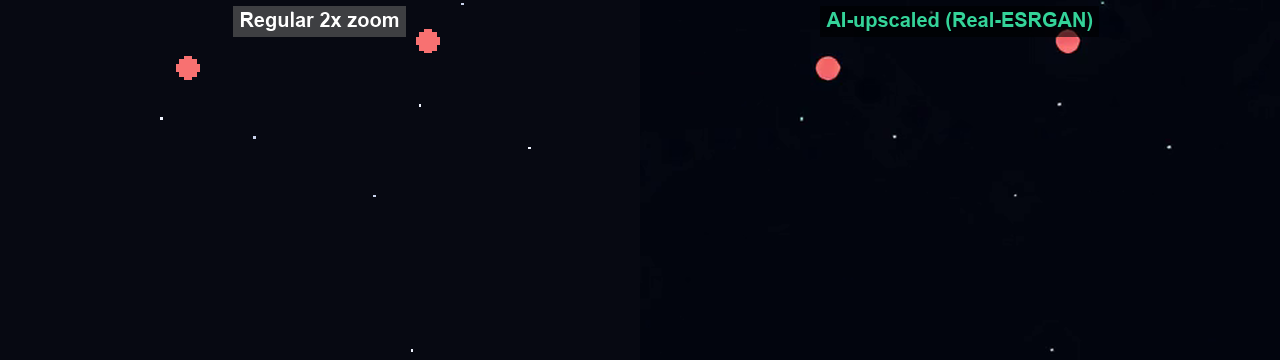
Real-ESRGAN–style upscaling is reconstruction, not recovery. The model looks at each frame's patterns — edges, textures, gradients — and rebuilds them at twice the size, plausibly and cleanly.
What genuinely improves:
- Edge definition — the biggest visible win; soft blobs become actual lines and shapes
- Compression damage — JPEG-style blocking, dithering noise, and banding from the GIF era get cleaned up
- Textures — skin, fabric, and background detail become convincing instead of smeared
What no upscaler can do — ours included:
- Invent information. If the source never captured the text on a sign, upscaling produces sharper gibberish, not readable text
- Beat the 2× math. We do honest 2×: 480 in, 960 out. Tools advertising 4× or 8× on tiny sources are mostly producing confident-looking plastic
The practical read: old meme GIFs, forum avatars, and low-res game clips — the content GIFs were made of — upscale dramatically. Tiny logos and already-HD sources don't.
Method 1: AI upscaling, start to finish
The whole flow runs on this site — the free converter part in your browser, the AI part on GPU workers:
1. If the clip has dead air at the start or end, trim it first (next section explains why that saves money)
2. Open the AI GIF upscaler and drop your file in
3. Pick the model: standard for photos and screen recordings, the dedicated model for anime and pixel art — it preserves crisp lines and flat colors instead of smudging them
4. Run it — the first run each day is free, results take a few minutes, and you get a side-by-side before/after before paying anything
Want to see what the output actually looks like first? Real before/after conversions with file sizes are on the examples page — same pipeline, no cherry-picked stock footage.
Trim first — it's the difference between 2 and 8 credits
Upscaling is billed by duration, and the tiers are steep: 5 seconds costs 2 credits, 15 costs 4, and 30 seconds — the longest input accepted — costs 8. Cut your loop down to the part that matters with the GIF trimmer before upscaling and a six-second clip with two good seconds drops to the 2-credit tier.
Credits come in packs from $5 on the pricing page — one-time purchase, no subscription required. The daily free run needs no account at all.
Pair it with 60fps for the full revival
Sharpness and smoothness are different failures. A GIF can be crisp and still look wrong because it runs at 10-15fps — that's a frame-rate problem, and it's why old GIFs look choppy no matter how sharp the frames are.
The full treatment for an old GIF is two passes: AI frame interpolation to 60fps to fix the motion, 2× upscaling to fix the detail. Pro plans chain both in a single job; on free credits, run 60fps one day and upscale the next.
How to make a GIF higher quality without AI
If "make my GIF higher quality" is the actual goal — not upscaling specifically — work this ladder in order, because the cheapest fixes come first:
- Start from the best source you have. Every re-save of a GIF re-encodes it. If the original video still exists, convert that instead of fixing a copy of a copy
- Stop the ongoing damage. Palette cuts are the #1 sharpness killer — dropping to 64 colors flattens gradients and eats edge definition. If a GIF looks crusty, redo it from the source at full 256 colors and trim length instead of cutting colors
- Change how it plays, not the pixels. The same frames as MP4 look sharper than as a GIF at equal file size, because the bits go to detail instead of storing every frame raw — converting to MP4 is often perceived as a quality upgrade on its own
- Only then, upscale. When the source is maxed out and still too soft, AI 2× reconstruction is the only step left that actually adds sharpness — plain resizing just interpolates between existing pixels and comes out blurrier
When you should NOT upscale
- The source is under ~150px wide. There's not enough information to reconstruct — you'll get bigger blur
- It's already 1080p. Returns diminish fast, and the file just gets heavier
- You actually need 4K. We don't sell stacked 4× upscaling because it doesn't survive inspection — if a tool promises 8× on a 200px GIF, look at the output texture before believing it
- The GIF must stay under a size cap. Upscaling grows the file; if the result needs to fit an upload limit, run it through the GIF compressor after
FAQ
Can you upscale a GIF to 4K?
Honestly, no — and neither can the tools claiming it. We do a true 2× (480×270 → 960×540): the model reconstructs edges and textures but can't invent detail beyond that. Stacked 4× passes on a small source produce smooth-looking plastic, not detail.
How much does it cost to upscale a GIF?
2 credits for up to 5 seconds, 4 for 15 seconds, 8 for 30 seconds — the longest input accepted. One run per day is free with no account, credit packs start at $5 one-time, and Pro ($9/month) includes 100 credits monthly.
Does AI upscaling work on anime and pixel art GIFs?
Yes — a dedicated model keeps line art crisp and flat-color regions flat, where generic upscalers smear exactly those. Sprites and cels are the best-case inputs.
Will upscaling make my GIF look smoother?
No — that's a different fix. Upscaling sharpens each frame; choppiness comes from low frame rate. For smoothness you want AI frame interpolation to 60fps, and the two combine well.
Is there a free way to upscale without AI?
Not really. Plain resizing (what any editor's "resize" does) interpolates between existing pixels — bigger, but blurrier. That's fine for slight reductions, useless for enlargement. Actual upscaling needs a model that reconstructs detail, which is what the AI run does.